Your iPhone Can Talk to Any API
Most people think of the Shortcuts app as a way to toggle Wi‑Fi, run a timer, or expand some text. But hidden inside it is one action that turns your phone into a proper HTTP client: Get Contents of URL. With it, your iPhone can call any web API — read data, send data, and act on the response — with no code and no extra app.
I only really appreciated this when I built the "publish to this site from my phone" flow: a share‑sheet shortcut that POSTs a photo straight to an API. But you don't need a custom backend to play with it. Below are two tiny examples you can build in a couple of minutes, both against free public APIs, so you can follow along on your own phone.
The one action that does everything
Add an action to a shortcut and search for Get Contents of URL. Tap Show More and you'll see it's a full request builder:
- URL — where you're sending the request
-
Method —
GET,POST,PUT,PATCH,DELETE -
Headers — e.g.
AuthorizationorContent-Type -
Request Body —
JSON,Form, or aFile
That's the whole thing. GET to read,
POST to send. Let's do one of each.
Follow along #1 — a GET request (live weather, no sign‑up)
Open‑Meteo is a free weather API that needs no API key, which makes it perfect for a demo. Build this:
-
Get Contents of URL
-
URL:
https://api.open-meteo.com/v1/forecast?latitude=51.48&longitude=0¤t=temperature_2m - Method: GET
-
URL:
-
Get Dictionary Value → get
current.temperature_2mfrom the result - Show Notification (or Quick Look) with that value
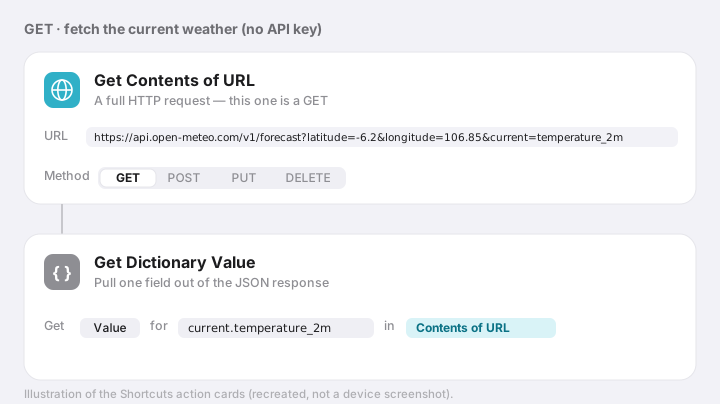
Everything after the ? in that URL is a
query parameter — that's how you pass inputs to
a GET request. Here I'm asking for the current temperature at
the Royal Observatory in Greenwich — longitude 0, as it happens. Run
the shortcut and the response comes back as JSON, roughly:
{
  "latitude": 51.48,
  "longitude": 0,
  "current_units": { "temperature_2m": "°C" },
  "current": {
    "time": "2026-07-12T02:00",
    "temperature_2m": 17.4
  }
}
The Get Dictionary Value action is how you reach
into that JSON. Ask for the key path
current.temperature_2m and you get 17.4 —
a single value you can drop into a notification, a text message, or
anything else.
Follow along #2 — a POST request (send data, read the reply)
GET reads; POST sends. To see it work
without needing an account anywhere, we'll use
httpbin.org — a free testing
service whose /post endpoint simply
echoes your request back to you. That echo is the
whole point: you can see exactly what your phone sent.
-
Get Contents of URL
- URL:
https://httpbin.org/post - Method: POST
-
Request Body: JSON, with two fields:
-
message(Text) →Hello from Shortcuts count(Number) →3
-
- URL:
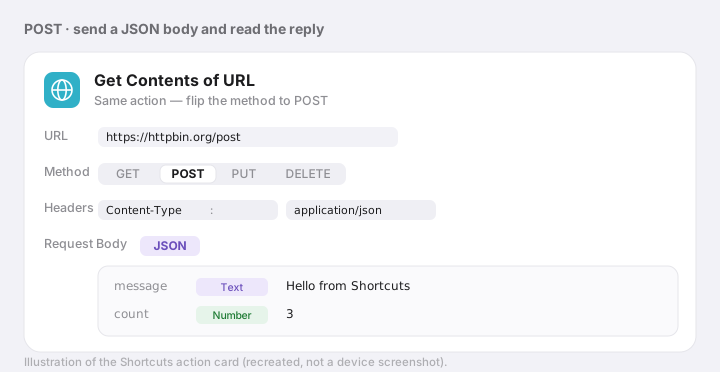
When you choose a JSON body, Shortcuts sets the
Content-Type: application/json header for you. Run it,
and httpbin sends back a summary of what it received:
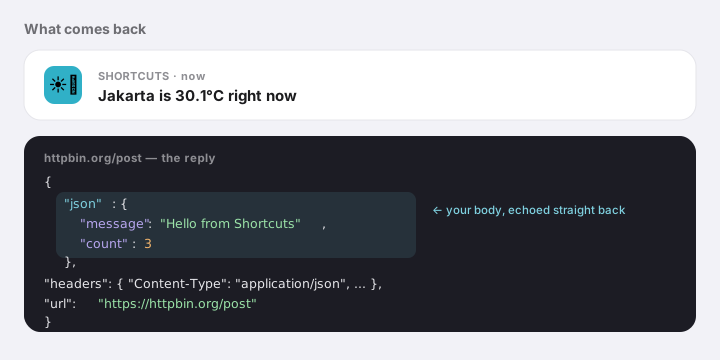
{
  "json": {
    "message": "Hello from Shortcuts",
    "count": 3
  },
  "headers": { "Content-Type": "application/json", "...": "..." },
  "url": "https://httpbin.org/post"
}
See the json object? That's your request body,
received and echoed back — proof the POST went through. Swap
httpbin.org/post for a real endpoint and you're now
sending data to it from your pocket.
Reading what comes back
The response from Get Contents of URL is just text — usually JSON. Two actions unpack it:
-
Get Dictionary Value — pull a single field by key
(
current.temperature_2m,json.message, …). - Get Dictionary from Input — turn the raw text into a dictionary first, if a step in between lost the type.
For a list of results, follow either with a Repeat with Each to loop over the items.
Where this actually gets useful
Once you realise your phone can speak HTTP, a lot opens up:
- Log something to a spreadsheet — POST a row to a Google Sheet or Airtable webhook from the share sheet.
- Post to the fediverse — Mastodon's API is a single authenticated POST.
- Hit your smart home — most hubs expose a local HTTP endpoint; a shortcut on your home screen becomes a button.
- Publish to your own site — this is exactly how I add photos and posts here: a share‑sheet shortcut POSTs to a small API, no laptop required.
A few gotchas
-
Auth goes in Headers, most
commonly
Authorization: Bearer <token>. Treat any token you paste into a shortcut like a password. -
JSON vs Form. APIs that want JSON need the
JSON body type; older or form‑style endpoints
want Form. If you get a
400, this is the usual culprit. -
It must be HTTPS and the endpoint must be
reachable from the public internet (a
localhostaddress won't work from your phone). - Handle failures. Wrap the request in an If that checks the result, or add Show Result while you're building so you can see the raw response.
Try it
Build the weather shortcut first — it's three actions and gives you a real number from a real API in under two minutes. Once the GET clicks, the POST is the same action with the method flipped. From there, every API with a documented endpoint is fair game, straight from your home screen.
(The images above are clean recreations of the Shortcuts action cards, drawn for this post rather than captured from a device — the steps match what you'll see in the app.)